How to Share a File Without Losing Track of It
Choose between an attachment, a cloud link, or a shared folder, then make the file’s name and access settings clear enough that everyone knows which copy to use.
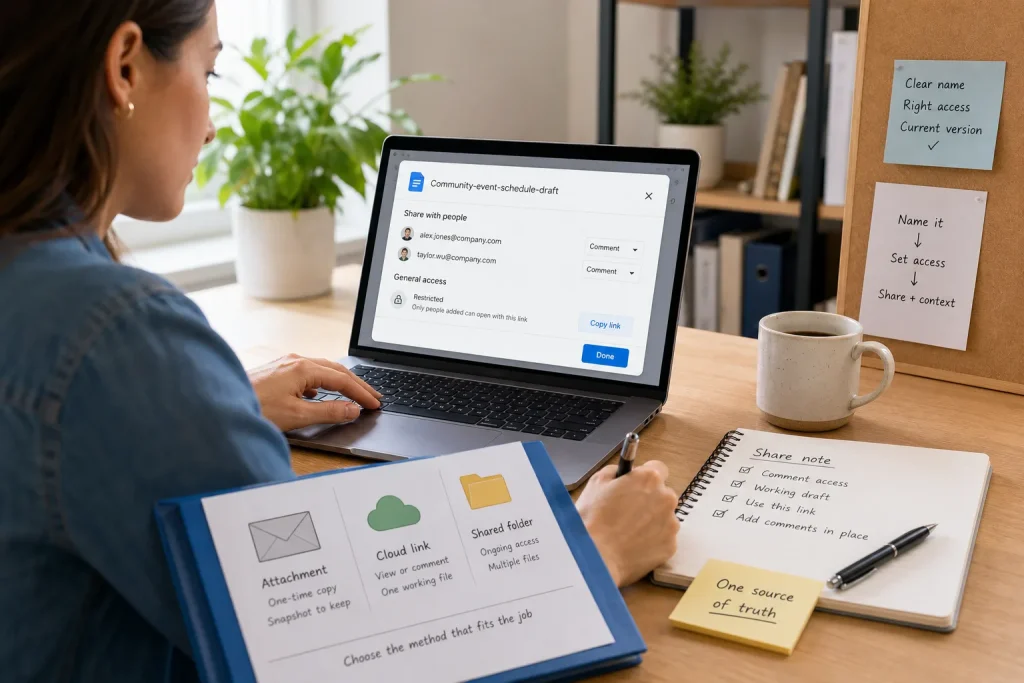
You send a document called “notes-final” to a colleague, then revise it and send another copy. A week later, neither of you is sure which version contains the latest changes. The problem is not simply where the file was sent: it is that the sharing method, access, and file identity were never made clear together.
A reliable handoff gives the recipient three things: a usable file or link, permission to do what they need, and enough context to recognize the current version. The right method depends on whether the recipient needs a one-time copy, a place to collaborate, or continuing access to a shared resource.
Choose the sharing method that fits the job
An email attachment is often the simplest choice when someone needs a snapshot they can keep, and you do not expect to revise the file after sending it. It also works when the recipient cannot use your cloud service. The tradeoff is that every attachment becomes a separate copy. If you edit your original later, the recipient’s file will not change with it.
A cloud link can suit a file that recipients should view or edit in a shared location. Cloud services differ in how their links, permissions, sign-in requirements, and behavior after a file is moved or updated work. Before relying on a link, check the sharing options shown for that specific file and account, and confirm what the recipient will be able to do. Do not assume that the same controls or link behavior apply across services.
A shared folder makes sense when people need ongoing access to several related files, such as working documents for a project. It can reduce repeated invitations, but it also exposes more than a single-file link. Check the folder contents and its membership before inviting anyone.
Ask what the recipient needs to do. If they only need to read a finished handout, use a view-only link or attach a settled copy. If they need to suggest edits, allow comments if the service supports them. Give editing access when direct changes are part of the task, rather than as a default.
Make the file easy to recognize
A useful filename describes the content, not just its status. “Meeting notes” could refer to any meeting; “Northside-project-kickoff-notes” gives the recipient a clue. Add a date or version label when it helps distinguish drafts, but keep the pattern readable and consistent. Avoid strings such as “final-final-new” because they record indecision instead of clarifying which copy to use.
Before sharing, open the file and confirm that its title matches the name you intend to use. If a document is called one thing in the link preview and another after opening, the recipient may wonder whether it is the right file. For recurring work, agree on a simple naming pattern, such as project, document type, and date, so related files sit together in search results.
Also consider what the recipient sees when they open the file. A brief first line or a clear document title can explain its purpose. If there are several files, include a short message identifying each one rather than relying on the recipient to infer the relationship from a folder full of documents.
Set access for the intended audience
Sharing controls vary, but they may distinguish between named people and anyone who has a link. A named-person invitation can help limit access to a specific audience, while a link that works for anyone who receives it may be convenient for a broad group and could be forwarded beyond the original recipients. Check the actual settings available for the file rather than relying on a general description of the service.
Choose the narrowest setting that still lets the recipient do the task. Check whether the link allows viewing, commenting, or editing, and whether the service requires the recipient to sign in. A setting that is too restrictive can block legitimate access; one that is too broad can expose material to people who do not need it. If the file contains personal, financial, workplace-confidential, or otherwise sensitive information, follow the relevant organization’s rules and ask an appropriate administrator when the right setting is unclear.
Think about duration and ownership, too. For a short-lived handoff, remove access when it is no longer needed if the service makes that practical. For a document that must remain available, ensure its owner is an account or team that will continue to manage it. A link can stop working if its owner deletes the file, changes permissions, or loses access to the account.
Keep one clear source of truth
When a shared file is meant to change, tell recipients that the link points to the working version and ask them not to make separate copies unless they need one. For a fixed deliverable, make clear that the attachment or downloaded file is the version to keep. Mixing these expectations creates parallel copies that can drift apart.
If you replace or move a file, check the original link before assuming it still works. Link behavior can depend on the service, account settings, and the action taken. When in doubt, send a fresh link and explain that it replaces the earlier one. Keep the message in the same email thread or project conversation so people can find the handoff later.
A short note can carry the context the filename cannot: what the file contains, what the recipient may do, and which copy is authoritative. For example, “Here is the view-only draft for review; please leave comments in the document, and use this link rather than downloading a separate working copy.” That wording sets expectations without turning a simple share into a long set of instructions.
Hypothetical worked example: sharing a review document
Suppose Mina needs to send a draft event schedule to two teammates. They should comment, not rewrite the original, and the schedule may change after their review. She renames the file “Community-event-schedule-draft,” stores it in the team’s approved cloud folder, and invites the two teammates by their work accounts with comment access if that option is available. She checks the sharing settings for the file, confirms the document opens under the intended title, and sends the link with a note saying it is the current draft and asking them to add comments in place.
The expected result is one identifiable working document with feedback collected in one location, provided the recipients can access it and the selected permission allows comments. The tradeoff is that the teammates may need an account or sign-in, depending on the service’s settings. If one cannot use it, Mina can ask the team administrator about an approved alternative rather than sending a less controlled link or creating an unmanaged copy.
Use a final handoff check
Before sending, confirm that the file opens, the name describes it, and the recipient has the intended permission. Check that the link points to the right item, not merely to a nearby folder or an older draft. Then state whether the recipient should read, comment, edit, or keep a fixed copy.
After sending, retain the message or conversation where the link was shared. If someone asks for the file later, return to that record, verify the link still works, and resend the same source rather than guessing among several attachments. Clear naming and a small amount of context make that record useful long after the original handoff.